Alexander John

Thoughts, notes & the occasional opinion.

Page 3 of 6

Setting up a forum – not as easy as you might think

Several of years ago, when working for a now defunct company, a customer wanted to add a forum to his website. That’s easy the boss said, and a colleague duly installed one of the many free to use forums. As we weren’t managing the forum beyond the installation of the software, we paid little or no heed to the initial configuration of the forum. As a casual forum visitor, I guess I assumed that starting up a forum would just as easy as using it.

I was wrong. In the last couple of weeks, Calzada Media has been working towards the launch of a new online forum for the local cricket community called LegStump. LegStump is all about building online cricket communities between the grass roots supporters and players: the local village and community teams who play cricket for simple enjoyment.

It would have been easy to upload any forum software and then configure it on the hoof. Such an approach doesn’t mean you’re doing anything especially wrong but you are lining yourself for some potentially big problems in the future.

So, we took the other road and took our time applying the normal Calzada project management processes. Only when we were happy with a version of the forum running on our development servers, did we even consider moving it into the live environment.

With our experience fresh in the memory, here are our recommendations for those, like us, starting our with their first forum:

Choose your forum software wisely

This will be your biggest and most important choice. Once you have deployed a forum, migrating to a different software package is a challenging prospect, not only for you, but also for your members.

Based on our experience, we advise:

  • Be aware of your limitations and knowledge – For example, don’t use a Perl based forum if you have never used Perl.
  • Taken into consideration the hosting platform upon which you will run your forum. If you already have web hosting, then bear in mind your package’s functionality and capabilities. If you don’t have hosting, you do need to consider potential hosting costs.
  • Look for a consistent and high quality user experience for all grades of members.
  • Can the forum software be extended? Are there a good range of modifications, plugins and themes available?
  • How easy and capable are the forum’s management capabilities?

Whatever software you choose, be sure to evaluate the software prior to deployment. With LegStump, there were a number of forums we liked but it was through testing and evaluation we narrowed down our choice to MyBB.

Prepare and publish your rules, guidelines and legal notices

This is an area that often overlooked. Without stated rules and guidelines, you run the very real risk of losing control of the discussions and content on your forum. You should not only clearly define your forum’s rules and guidelines, but also place them at a location where everyone including non-members can read them.

At LegStump, we currently operate under four principal legal documents:

It is also worth noting that these rules and guidelines apply to all users irrespective of their roles or positions within the forum.

Design

The wrong design or theme will drive members away as quickly as the improper choice of forum software. You chosen design should:

  • Reflect the tone of your forum’s content
  • Be easy on the eye – no big clashes of colour
  • Not unduly affect the performance of the software

Enhance the capabilities of your forum with plugins

Do check out the range of modifications or plugins that are available for your chosen forum software. You may be surprised just what are available and how they will enhance your forum.

With LegStump, we have utilised nearly 10 mods to improve both the user experience and also management capabilities.
 

Happy New Year

A day late, but Happy New Year and best wishes for the year ahead.

2011 was a year of great change across the globe and anxiety for many (especially for us folks in Europe!). Some commentators have suggested that it is a year to forget. I disagree. In many ways we should be thankful that 2011 is over, but we should not forget the events that defined it.

The Tsunami in Japan whose effect will be felt for future generations. The Arab Spring where successive totalitarian governments were toppled like Dominoes. The killing of Osama Bin Laden. The continuing Euro crisis that will almost certainly never be resolved fully – I smell a Heath Robinson half-baked euro-bodge-solution in the coming months. These are just some of the events that have profoundly reshaped the world we live in. I suspect that in the future, 2011 will be viewed as the turning point where the world truly started to become less West-centric. The economic emergence of the BRIC nations at the time of the decline of the European block has all but ensured that this scenario will come true.

Every year has defining events. 2011 stands out due to the sheer and almost incessant number of events, spread out across the world affecting a significant proportion of the global population.

Here’s to hoping that 2012 will be a great year.

A new location, a new name

We’ve moved! And just to add some extra confusion, we’ve changed our name as well! Well, at least this blog has.

First, the change of location. As I’m now doing work for companies other than Whiteleaf Networks, I’ve moved this personal blog outside of its’ domain and nominal purview*. Although future posts may touch on work done with Whiteleaf Networks or any other company, they will neither be official or approved.

Changing the name is mostly about appearance and perception. The original name of CrossNotes was a vague pun on the origin of the name Whiteleaf Networks (if you don’t know, above the village of Whiteleaf there is a large cross cut into the chalk hillside). However, it does give the impression that I’m always slightly miffed at the world or life in general (which I don’t think I am). Also, as this blog is becoming a little more personal, it does make sense to stick my name at the top.

So what is to come? I’ll be expanding the subject matter to include web design & development and perhaps a few more esoteric topics. I do have some IT posts in the works including an updated version of a powershell script to automate the backups of Hyper-V Virtual Machines.

* For the purposes of transparency, this blog/domain is still hosted by Whiteleaf Networks

Configuring RAID1 on LG N2A2 NAS

I recently purchased an LG N2A2 2 Bay NAS to use as my primary disk to disk backup solution. As per LG’s recommendation – a big shiny sticker on the box – I upgraded the firmware to the latest version before using the NAS in anger. This new firmware (6674) has a far improved interface and capabilities than than provided with the firmware shipped with the NAS. The downside is that all of the online help documentation is in Korean.

As my knowledge of Korean is non-existent, working out how to configure the NAS’ disks to RAID1 required more than a little help from Google Translator. Detailed below is how I configured RAID1. As usual, this information is provided “AS IS” and you use it at entirely your own risk.

Caution: ensure you backup all data on the NAS prior to performing this task. This process will irretrievably wipe all existing data you may have stored on the NAS.

1. Log into the web management interface of the NAS using the admin username and password (by default this is ‘admin’ and ‘admin’).

2. On the homepage of the web interface, click on the Volume option. If it is not present, go to the Configuration section via the links on the left of the page to find it.

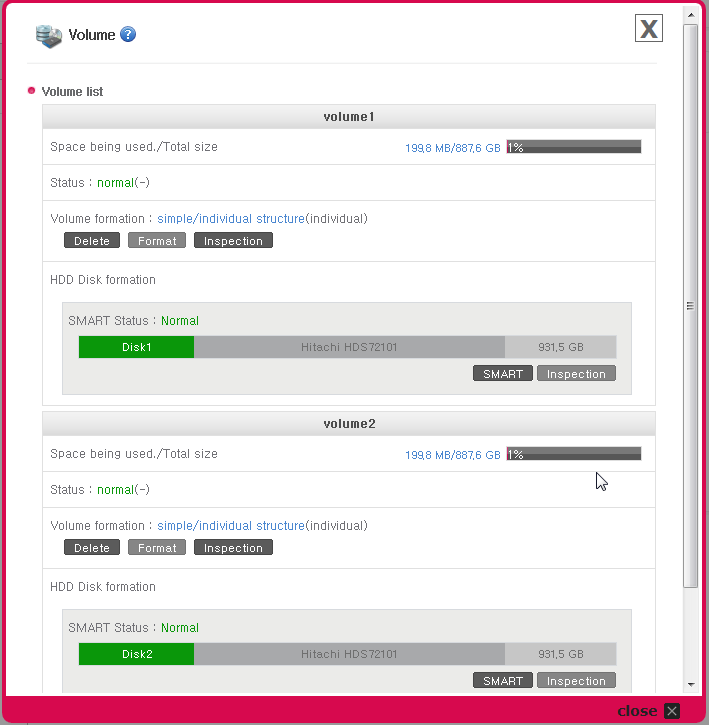
3. If your NAS volumes have never been altered from their as shipped state, the volumes list should contain two separate volume (see screenshot 1).

NAS RAID Screenshot 1

Screenshot 1

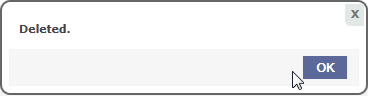
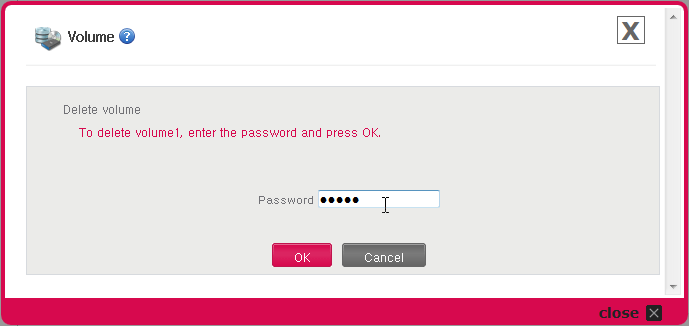
To configure RAID1, both of these volumes must be deleted. Click on the Delete button next to each volume to do this. You will be prompted to confirm the deletion (see screenshot 2). Enter the admin password and click on *OK* to confirm the volume deletion. Once deleted, a confirmation message will appear (see screenshot 3).

Screenshot 2

Screenshot 2


Screenshot 3

Screenshot 3

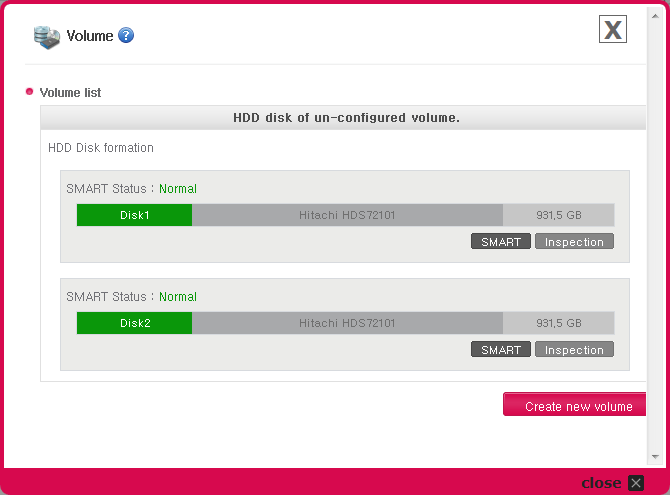
4. Once both volumes have been deleted, the volumes list just show the two unused disks (see screenshot 4). To start creating the RAID1 volume, click on the Create New Volume button.

Screenshot 4

Screenshot 4

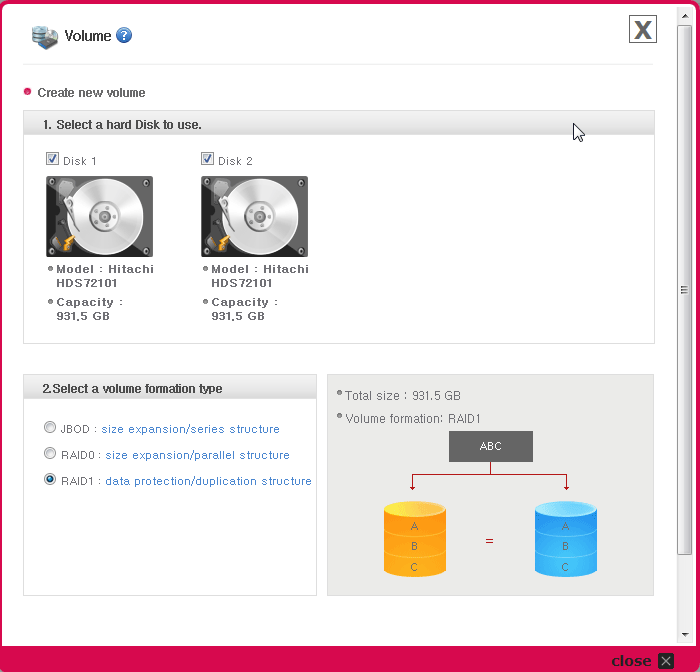
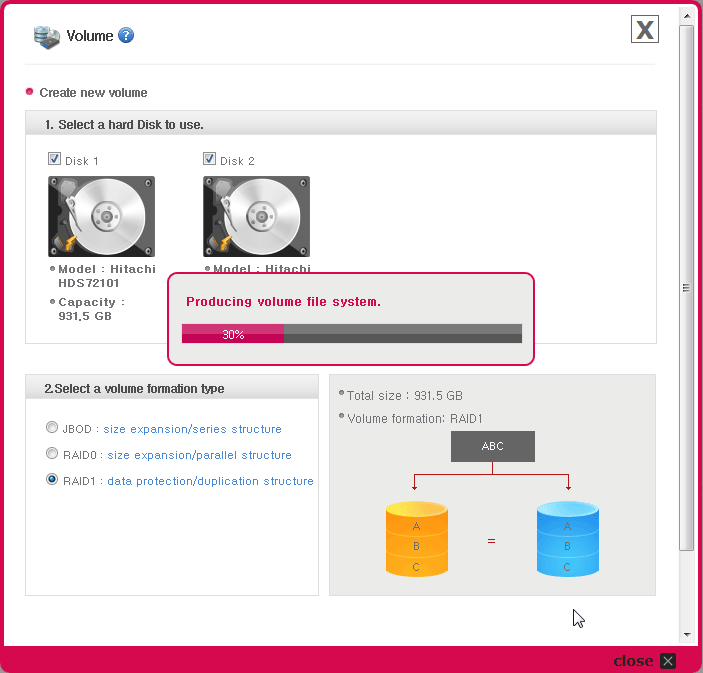
5. The next dialog will list the available unused disks. Click/select both Disk 1 and Disk 2. By default, the option RAID1: data protection/duplication structure should automatically be selected under 2. Select a volume formation type, if not, select it (see screenshot 5).

Screenshot 5

Screenshot 5

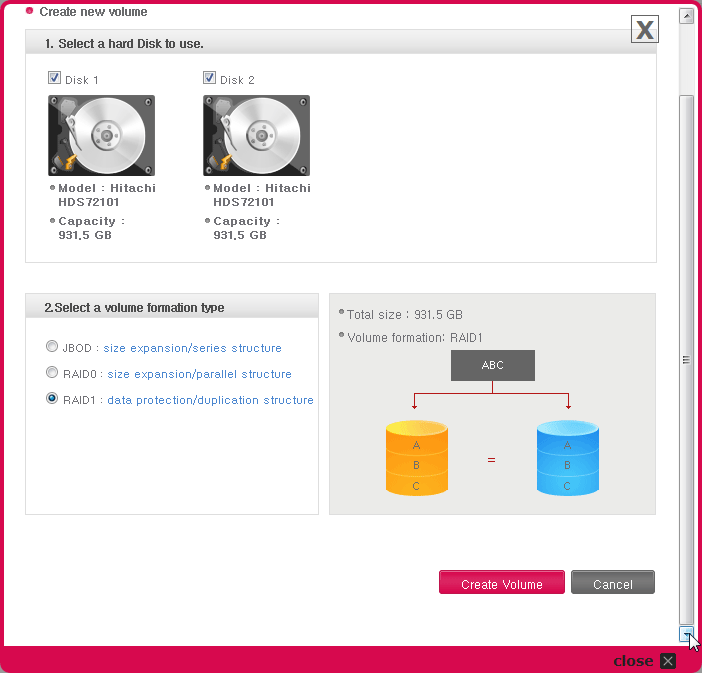
6. The create new volume dialog is actually larger than its’ containing window. To proceed, scroll down using the scroll bar on the right and click on the Create Volume button to start the RAID1 creation process (see screenshot 6).

Screenshot 6

Screenshot 6

7. The creation process will now begin. A small dialog will appear showing the progess of the volume creation (see screenshot 7). Once completed, this dialog will update to display an OK button. Click on this button to continue.

Screenshot 7

Screenshot 7

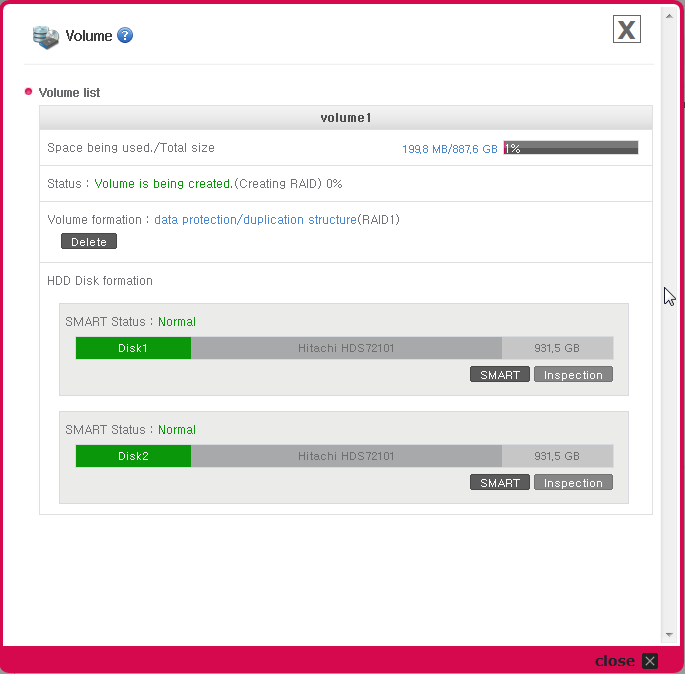
8. You will not be returned to the volume listings which will show a single volume comprising of two disks in RAID1 formation (see screenshot 8).

NAS Screenshot 8

Screenshot 8

Important: The volume is not yet ready for use.

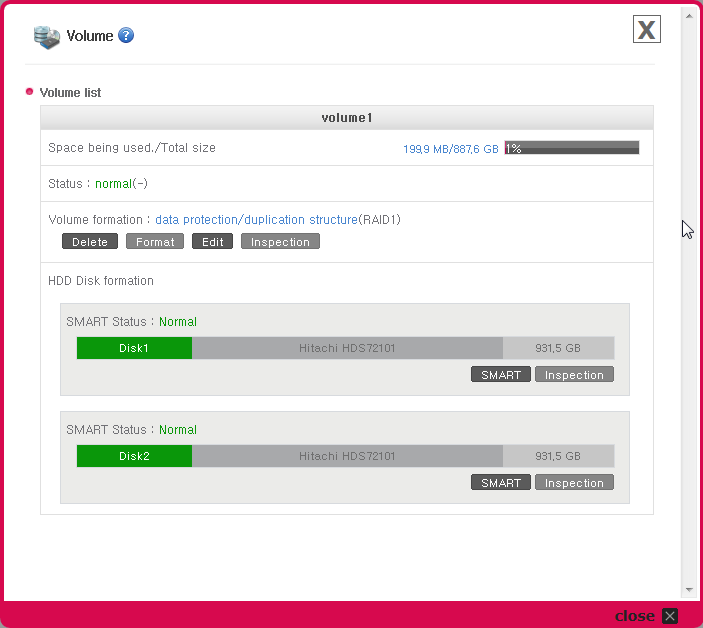
Please note the status message of Volume is being created. (Creating Raid) 0% in screenshot 8. The new volume is still being configured for RAID. Only start writing data once this status value changes to normal (see screenshot 9). This process may take several hours, and the status message does not dynamically update. You will need to close the Volume window and then re-open it to get an up-to-date status message.

NAS RAID Screenshot 9

Screenshot 9


Getting HDMI sound working on an ASUS ATI/AMD 4350

When I built my HTPC earlier this year, I replaced the elderly graphics card within the old chassis I was using with an ASUS 4350. I don’t pretend to be anywhere near an expert on graphics cards, but the limited research I did led me to believe that this card would be ideal. Relatively cheap, passively cooled and delivered full HD via HDMI.

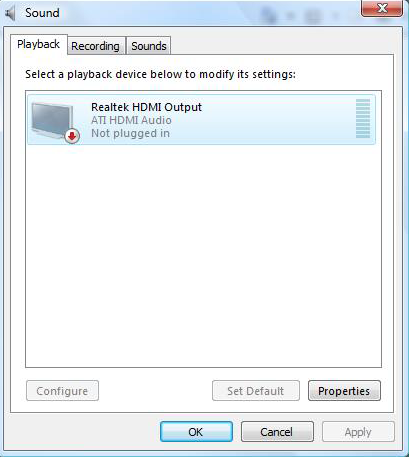
What I did not know then, but what I discovered following installation, is that this card does not output sound via HDMI without some driver jiggery-pokery. You would see a message similar to this one in the Sound properties dialog within Windows.

In short, neither the supplier driver nor the updated Catalyst drivers from AMD/ATI include the relevant Realtek audio driver. The solution is relatively simple: you download and install the latest HDMI audio driver from Realtek.

This is what I did earlier this year and my HTPC worked without a hitch until I mistakenly updated the AMD/ATI Catalyst drivers through Microsoft Update which promptly broke it. Needless to say, I hadn’t written down how to get this working so I had to find out all over again from scratch.

Disclaimer: It is not generally recommended to download and install drivers directly from OEMs. Your first port of call should be the company that manufacturered the product you are using (in this case ASUS). If you follow these steps, you are doing so entirely at your own risk.

  1. (Optional) Head over to AMD and grab the latest Catalyst drivers for the card (http://support.amd.com/us/psearch/Pages/psearch.aspx?type=2.4.1&product=2.4.1.3.38&contentType=GPU+Download+Detail)
  2. Go to Realtek’ High Definition downloads site (http://www.realtek.com.tw/downloads/downloadsCheck.aspx?Langid=1&PNid=14&PFid=24&Level=4&Conn=3&DownTypeID=3&GetDown=false).
  3. Check/tick the option Iaccept to the above and then click on the Next button.
  4. Scroll down the list ofWindows drivers until you find the entry ATI HDMI Audio Device (it will be in red text). Click on one of the three download links to the right to download the driver.
    • There are a couple of possible gotchas when downloading
      1. Last time I tried, none of the US download locations worked. The links just redirected back to step 2 above
      2. The downloads are FTP transactions that can take upto several minutes to stat. So don’t worry if nothing happens immediately.
  5. Once downloaded, install the driver. You should be prompted to restart your computer once completed, if not, do so anyway.
  6. Upon restart, sound may still appear to be disabled. The trick here is to pull out the HDMI connection and then replace it. Once this is done, the HDMI sound connection should be detected and work.


The moral of this particular story: Sometimes, it is necessary to document things you do with your home systems.


Resetting Webmin password for Ubuntu

The inevitable happened: I forgot the password for Webmin on one of my Ubuntu servers. In my defence, it is a server that I principally manage via SSH. Being Ubuntu, the necessary files are not in the same place as Webmin documentation. However, a quick Google search found a blog post with the solution. For my own records, I am duplicating below:

  1. Open a shell or SSH session on the target server
  2. Enter the command
    • /usr/share/webmin/changepass.pl /etc/webmin username password
    • Where username = webmin username. For me this was root
    • And password = new password.
  3. Login to Webmin to test

Thanks to and original information from http://ranawd.wordpress.com/2010/06/14/reset-webmin-password-for-ubuntu/

Given the number of password I seemingly have to remember, I think it is time that I employed some for of Password Safe.

Reset Webmin Password for ubuntu

13 Votes

I found this problem at the first time when webmin installed. Also this happens to everyone at one time or another. You go on vacation and when you come back, you forget all of the passwords on your computer.

I failed logging in several times and then Webmin blocked my IP. Getting localhost blocked isn’t a good thing to see. So I searched the Internet for a way to reset the password and I found this procedure:

1. Login to your computer as root. Type on browser address bar https://localhost:10000/
2. If you are running a Debian distribution (ubuntu), enter the following command:
/usr/share/webmin/changepass.pl /etc/webmin username password
3. Login to Webmin with your reset password.
4. eNjoY!

Remotely managing disks on Windows 2008/Hyper-V Server R2

As I’m mooting some hardware upgrades to my bash’n’crash Hyper-V server, I wanted to check out a few things with regards to it’s performance and general health. I duly fired up Server Manager, but was thwarted when I tried to use Disk Management and got the message of RPC Server is unavailable. I checked the Firewall, and the requisite rules (see below) were enabled. I recycled the Virtual Disk Service and still had no luck.

After hunting around a while I found a Technet Forum post that covered this. You have to enable the necessary inbound rules both on the server being managed and the managing computer. Once I had done this, and restarted Server Manager, I could access Disk Management.

For reference, the two rules that need to be enabled are:

Remote Volume Management – Virtual Disk Service (RPC)

Remote Volume Management – Virtual Disk Service Loader (RPC)

As per the Technet post, I found that you don’t need the Remote Volume Management (RPC-EPMAP) rule enabled. Needless to say, I only enabled both rules for the Domain firewall profile.

Automatically Loading PSHyperV Library

Late last year I wrote about getting the Powershell Management Library for Hyper-V (PSHyper-V) up and running on my Hyper-V installation. Although a newer version of the library was released in January, I simply hadn’t gotten around to updating my server. If I’m honest, beyond the occasional restart following an update (or powercuts – thanks for nothing EDF Energy) all of the Hyper-V servers under my care tend to sit the corner and are generally forgotten about. Far more attention is paid to the Virtual Machines than the actual host upon which they rely.

One change between the versions of PSHyperV has been the change from a standard script to a powershell module. As I prefer for the library to be automatically loaded, this required a change to the user’s powershell profile. The slight fly in the ointment is that I had forgotten how to do this, so here is a quick reprise for my own memory.

1. Open Powershell. If you are within a command prompt, type cmd /c start powershell to open a new powershell window.

2. In Powershell, type $profile. This will get you the full path to where your profile is stored. Your profile is a powershell script that executes whenever a Powershell prompt is opened. The profile will look something liek this:

C:\Users\<your username>\Documents\WindowsPowerShell\Microsoft.PowerShell_profile.ps1

3. Your profile file may or may not exist. If you have not already used it elsewhere, the chances are that it doesn’t. To create a new profile file, enter new-item $profile -itemtype file -force in Powershell.

4. Now open the profile file. If you are using Server Core or Hyper Server R2, you can still use Notepad (it is present, but missing a few features). So enter notepad $profile in Powershell.

5. Within Notepad, enter the Import-Module command for PSHyperV. If you install PSHyperV using the supplied install.cmd, this path should be like

Import-Module “c:\Program Files\modules\hyperv\hyperv.psd1”

6. Once done, save the file and exit Notepad.

7. To test, open a new Powershell prompt and type Get-VM. If everything has gone as planned, you will get a list of all of the VMs present on your Hyper-V server.

This process will only work for the current logged on user. If you have multiple user accounts on Hyper-V, you will need to repeat this process for all that require access.

Finally, if you have not already done so you will need to set the execution policy for Powershell. I’ve found that all you require is RemoteSigned. To set this, enter set-executionpolicy remotesigned within Powershell.

Powershell Tip #1
In Powershell, type $profile.

PS C:\Program Files\Microsoft\AxFuzzer> $profile
C:\Users\mengli\Documents\WindowsPowerShell\Microsoft.PowerShell_profile.ps1

That points to where your profile is stored at. This is a powershell script that executes upon the start up of any powershell prompt for the current user. Go ahead and make the file. In my case, I made a new file at the location by typing this:

new-item $profile -itemtype file -force

Now, open the file and you can put in things like this:
set-executionpolicy unrestricted
. \\meng\shared\powershell\hyperv.ps1
set-executionpolicy remotesigned

Every new powershell prompt that you

Getting System Information from the command line or Powershell

Although there are any number of tools available to gather and collate information regarding the configuration and composition of a computer, these are often overkill when all you wish to learn is one or more basic details like the processor type, memory, computer name etc.

A quick shortcut is to gather this information from the command line or Powershell. Windows XP and later includes in the systeminfo utility. Typing this at the command prompt will produce information similar to this:

1
2
3
4
5
6
7
8
9
10
11
12
13
14
15
16
17
18
19
20
21
22
23
24
25
26
27
28
29
30
31
32
33
34
35
36
37
38
39
40
41
42
43
44
45
46
47
48
c:\systeminfo
Host Name:                 SOMEPC
OS Name:                   Microsoft Windows 7 Ultimate
OS Version:                6.1.7100 N/A Build 7100
OS Manufacturer:           Microsoft Corporation
OS Configuration:          Member Workstation
OS Build Type:             Multiprocessor Free
Registered Owner:          SomeOwner
Registered Organization:
Product ID:                00428-321-7001132-70186
Original Install Date:     04/05/2009, 10:29:33
System Boot Time:          28/09/2009, 13:50:08
System Manufacturer:       Dell Inc.
System Model:              Latitude D820
System Type:               X86-based PC
Processor(s):              1 Processor(s) Installed.
[01]: x86 Family 6 Model 14 Stepping 8 GenuineIntel ~2000 Mhz
BIOS Version:              Dell Inc. A09, 04/06/2008
Windows Directory:         C:\Windows
System Directory:          C:\Windows\system32
Boot Device:               \Device\HarddiskVolume2
System Locale:             en-gb;English (United Kingdom)
Input Locale:              en-gb;English (United Kingdom)
Time Zone:                 (UTC) Dublin, Edinburgh, Lisbon, London
Total Physical Memory:     3,326 MB
Available Physical Memory: 858 MB
Virtual Memory: Max Size:  8,313 MB
Virtual Memory: Available: 5,500 MB
Virtual Memory: In Use:    2,813 MB
Page File Location(s):     C:\pagefile.sys
Domain:                    somedomain.lan
Logon Server:              \\SOMEDC
Hotfix(s):                 4 Hotfix(s) Installed.
[01]: KB958830
[02]: KB969497
[03]: KB970789
[04]: KB970858
Network Card(s):           3 NIC(s) Installed.
[01]: Intel(R) PRO/Wireless 3945ABG Network Connection
Connection Name: Wireless Network Connection
DHCP Enabled:    Yes
DHCP Server:     10.10.0.1
IP address(es)
[01]: 10.10.0.100
[02]: fe80::901:8ac7:5a6b:1f56
[02]: Broadcom NetXtreme 57xx Gigabit Controller
Connection Name: Local Area Connection
Status:          Media disconnected

If you are using Powershell – if not, why not? – the get-wmiobject win32_computersystem command will return rudimentary details regarding the host PC.

1
2
3
4
5
6
7
PoSH>get-wmiobject win32_computersystem
Domain              : somedomain.lan
Manufacturer        : Dell Inc.
Model               : Latitude D820
Name                : SOMEPC
PrimaryOwnerName    : SomeOwner
TotalPhysicalMemory : 3487690752

Windows Task Scheduler Keyset does not exist Error

Task Scheduler is one of those great little components that once you set it, you tend to forget it. One of the Windows 2003 servers I tend has been running scheduled tasks flawlessly for over a year until they suddenly stopped one day. Every time I went to open/edit and individual task’s properties, a dialog with the following message appeared:

1
2
3
General page initialization failed.
The specific error is:0x80090016: Keyset does not exist
An error has occurred attempting to retrieve task account information. You may continue editing the task object, but will be unable to change task account information.

A solution to this problem is not readily apparent, more so after the ubiquitous net search returns results that relate to Windows 2000, not 2003. After some playing, and with reference to the MS KB article http://support.microsoft.com/default.aspx?scid=kb;en-us;246183, I got the Task Scheduler working again doing the following:

  1. Stop the Cryptographic service
  2. Delete the contents of the C:\Documents and Settings\All Users\Application Data\Microsoft\Crypto\RSA\S-1-5-18 folder – as a precaution, I made a backup first.
  3. Start the Cryptographic service (a server restart may be required)
  4. Re-assign the Run As user account for every required scheduled task
« Older posts Newer posts »

© 2026 Alexander John

Theme by Anders NorénUp ↑